Manage users
This guide shows you how to invite users to a roc Enterprise instance, and how to remove them, in the evroc Console.
Prerequisites
- A roc Enterprise instance. See Create a roc instance.
- The
thinkOperatorrole on the project. See Permissions and roles.
Invite a user
- Log in to the evroc Console and select your project.
- In the sidebar, under evroc Think, select roc Enterprise.
- Open your instance.
- Enter the user's email address and click Invite.
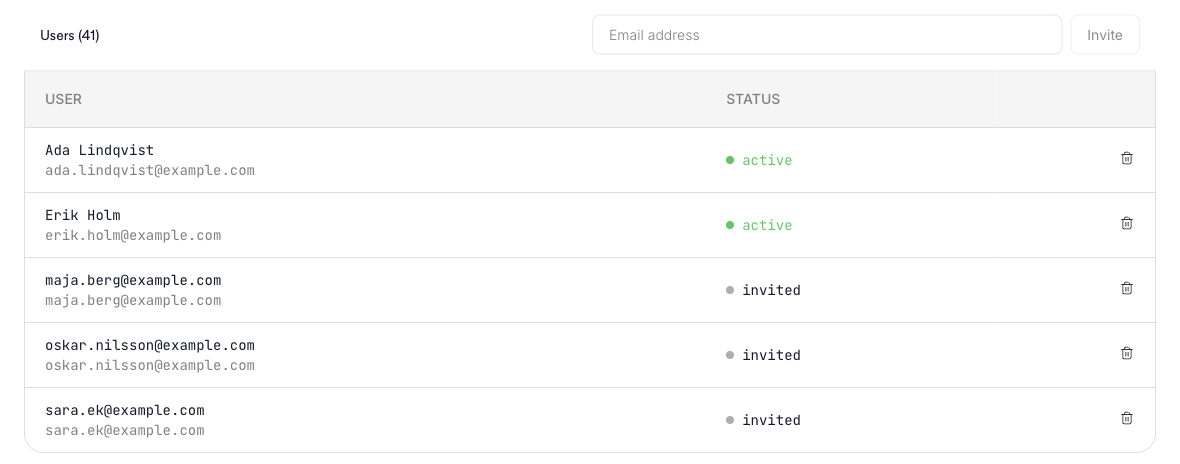
The user receives an email with a link to accept the invitation. The link expires after a while, so ask the user to accept it soon.
When the user accepts:
- If they don't have an evroc account, one is created for them. They receive a second email to set their name and password.
- They're added to your organization and given access to the instance.
The user can then sign in at the instance's endpoint.
Revoke an invitation
If a user hasn't accepted their invitation yet, you can revoke it:
- Open your instance.
- In the users list, find the invited user. Their status is invited.
- Click the delete icon next to the user, then click Revoke invitation to confirm.
You can select several invited users to revoke their invitations at once.
Remove a user
- Open your instance.
- In the users list, find the user. Their status is active.
- Click the delete icon next to the user, then click Remove user to confirm.
You can select several users to remove them at once. Removed users lose access to the instance.
Seats
Your instance is sized for the number of seats you chose when you created it. If more users are active than you have seats, the console shows a warning on the instance page. Users added beyond your seats are billed per user.
Next steps
- Features - What your users can do in roc